
How to Edit Product Descriptions and Images in Magento? A Complete Guide
2 min read StaffCloud
Magento is a powerful open-source eCommerce platform. Used by a wide range of businesses to build, operate, and grow their e-commerce presence. Magento is known for its flexibility, enabling sellers to customize storefronts, manage inventory, and handle complex product catalogues with ease.
Why is Magento Important?
What makes Magento a leading platform in e-commerce is its standout capabilities:
- Scalability: Ideal for both startups and large enterprises
- Customization: Supports thousands of extensions and themes
- Multi-language & multi-currency support: Suitable for global sellers
- Advanced product management: Simplifies complex catalogue handling
When and Where to Use Magento
Magento is the right fit if:
- You’re managing a growing or complex product catalogue
- You operate multiple storefronts or serve different regions
- When your operations demand extensive custom features or third-party tool integrations
- You need complete control over your eCommerce backend
It’s used across various industries, including fashion, electronics, B2B, and niche retail.
How to Update Product Content using Magento
Keeping your product content updated ensures your listings are accurate, appealing, and optimized for customer experience. Here's a step-by-step guide:
Step 1: Log In to the Admin Panel Step 2: Navigate to the Product Catalogue
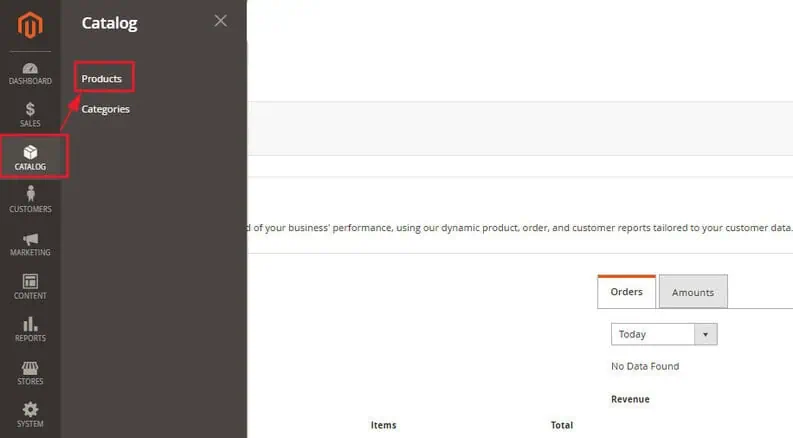
Go to Catalog > Products from the left-hand menu to view all listed products.
Step 3: Search for the Product
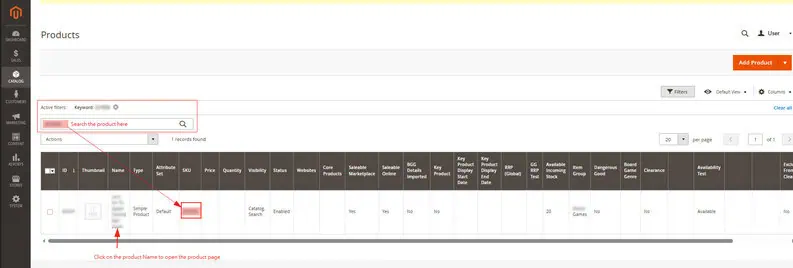
Use the search bar to locate the product by name or SKU. Select the product by clicking its name to access the detail view.
Step 4: Update Product Details:
a. Long/Short Product Description
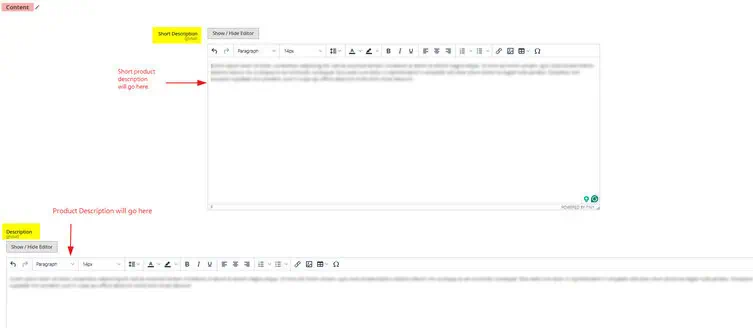
Scroll down to the Content section
Edit the Short Description and Product Description fields as needed
Click “Save” in the top-right corner
b. Product Images
Go to the Images and Videos section
Click inside the upload area to open the file selector and choose your image
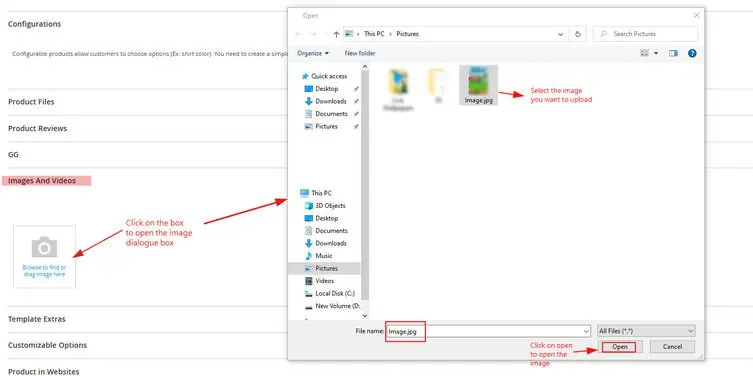
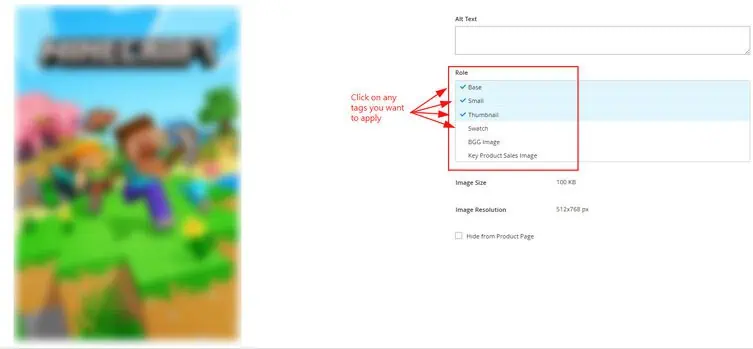
After uploading, click the image to apply relevant tags (e.g., base, thumbnail, small image)
Close the image box and click Save
Step 5: Add or Edit Product Categories
Find the “Categories” section positioned near the top of the product page.
Press the arrow icon to open the entire category structure. Either type in the search bar or browse through the category tree to choose the most relevant options.
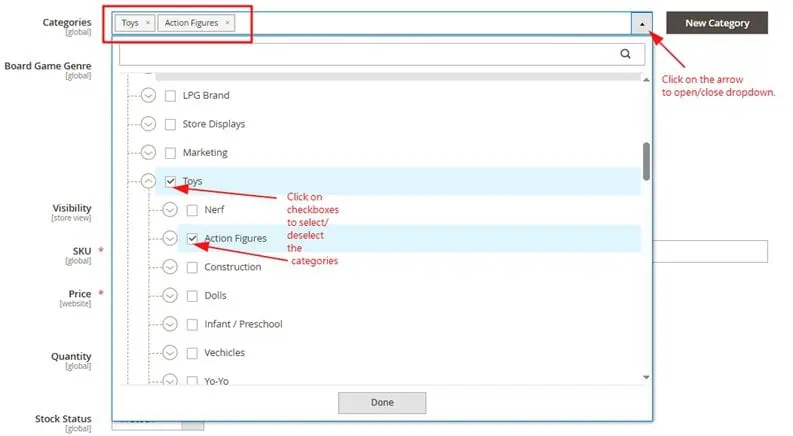
Click Save to apply changes.
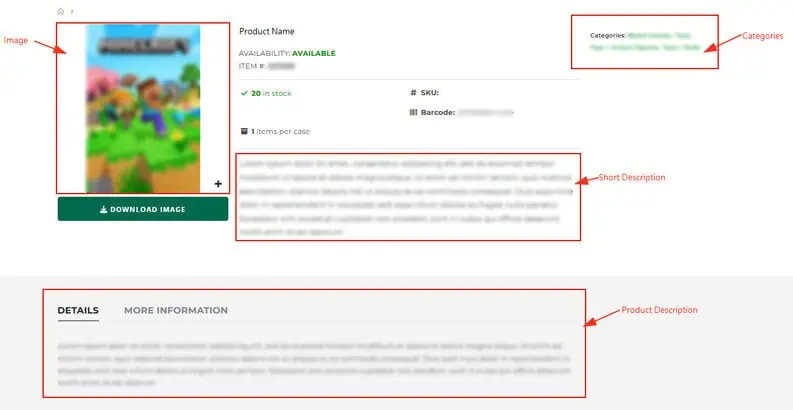
The final page will appear on the website as shown below:
Need Help with Magento Product Management?
At StaffCloud, we streamline your Magento operations—whether it's content enhancement, catalogue management, or bulk updates—ensuring everything runs smoothly and aligns perfectly with your business objectives.
Reach out to StaffCloud today for expert assistance and tailored solutions.
📧 Email: support@staffcloud.net
📞 Phone: +91 9326811779
🌐 Website: www.staffcloud.net
Related services
- eCommerce Product Data & Catalog Management Attributes, matching, pricing compliance and catalogue syndication. Explore service
- eCommerce Retail Systems & EDI Integrations Retailer portals, EDI, ERP and the disputes that come out of them. Explore service
- eCommerce Shopify & DTC Store Management DTC store operations: catalogue, apps, on-site SEO and the content around them. Explore service
More articles in eCommerce Platforms
-
 7 July 2025
How to Scale Multichannel E‑commerce with ChannelEngine?
In the current e-commerce environment, expanding your reach across multiple marketplaces is no longer a choice—it's a ne
7 July 2025
How to Scale Multichannel E‑commerce with ChannelEngine?
In the current e-commerce environment, expanding your reach across multiple marketplaces is no longer a choice—it's a ne
-
 12 August 2024
How to add products to your website using Network Solutions?
In today's digital age, maintaining a strong online presence is essential for business success. Network Solutions offers
12 August 2024
How to add products to your website using Network Solutions?
In today's digital age, maintaining a strong online presence is essential for business success. Network Solutions offers
-
 22 July 2024
How to Convert Seller-Fulfilled Items to Walmart Fulfillment Services (WFS)?
If you’re a Marketplace seller with an existing catalog, you might want to start using Walmart Fulfillment Services (WFS
22 July 2024
How to Convert Seller-Fulfilled Items to Walmart Fulfillment Services (WFS)?
If you’re a Marketplace seller with an existing catalog, you might want to start using Walmart Fulfillment Services (WFS